
In Qconic, we have several ticket statuses (customer requests = inquiries). Sometimes, the app automatically updates the status—for example, switching to 'Waiting on customer' once an agent sends a reply. This saves you time and keeps everything neatly organized! On the other hand, agents can also update statuses manually—like switching to 'On hold' or 'Closed'. You can easily track all status changes right in the ticket history.

Here is a breakdown of all the statuses and how they transition:
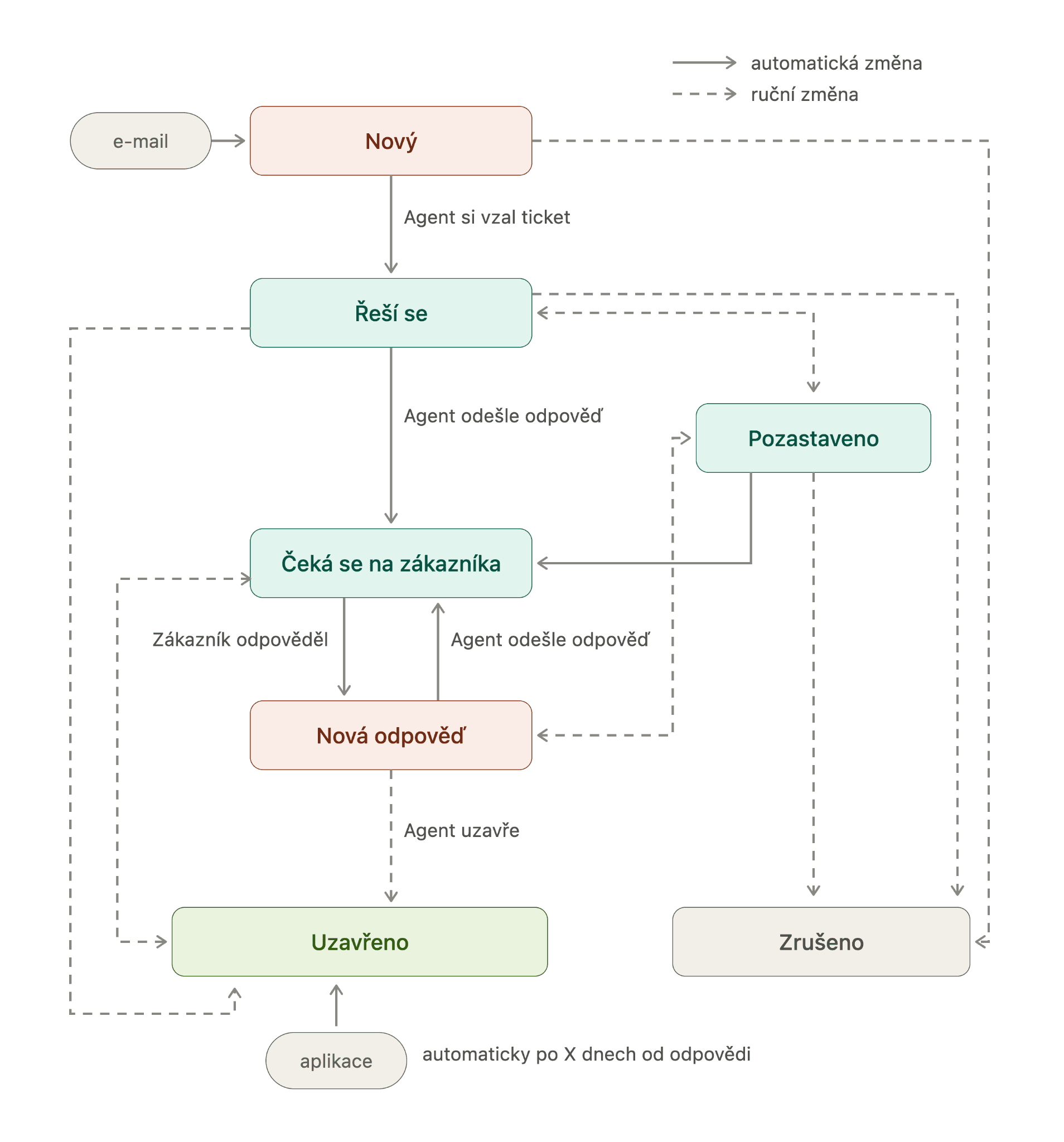
New – A new ticket created automatically from an incoming email, message, or call. It hasn't been assigned to any user/agent yet.
In progress – The ticket is assigned to an agent and is actively being worked on. Messages from webchat or Messenger keep this status throughout the entire conversation.
On hold – An agent can switch to this status manually. It usually means you're waiting for feedback from a colleague, or the ticket was forwarded to someone outside the helpdesk and you're awaiting their response.
Waiting on customer – The agent has replied and is waiting for the customer's response. If the customer doesn't reply within the timeframe configured in Settings under Ticket Resolution, the ticket automatically moves to 'Closed'.
New reply – The customer has responded, allowing the agent to follow up. Alternatively, a reply was received from an external user outside the helpdesk.
Closed – The ticket has been successfully resolved. An agent can close it manually, or it will close automatically after the agent's last reply—see the details above.
Canceled – Used for invalid tickets (i.e., not an actual customer query that needs solving). These tickets are moved to the 'Other' tab so they don't clutter your main inbox. Agents can set this manually, or it applies automatically if the sender is on the Blacklist.
The image below shows how email statuses transition and which paths are allowed. This ensures a smooth ticket flow across your team and gives you full visibility into what’s happening at every stage.
For real-time channels—like webchat, WhatsApp, FB Messenger, and SMS—statuses are simplified: New -> In progress (active conversation) or On hold -> Closed/Canceled.
Automatic Ticket Closure
To save your agents from having to manually mark every ticket as Closed (= successfully resolved), Qconic can take care of it automatically! A ticket closes on its own if the last message was sent by an agent and the customer hasn't replied back.
For webchat, the app closes the ticket after 30 minutes. Email tickets close after the timeframe specified in your Settings. Before closing, the customer can even receive a friendly heads-up asking if they have any further questions.
Custom statuses cannot be created in Qconic. The statuses above are pre-configured, ready to go out of the box, and include automatic status transitions to make your workflow effortless.