
Company emails like info@ or support@ have one thing in common – as soon as more people use them, chaos starts to creep in sooner or later. How do you get out of it?
Three levels of email chaos
Shared inbox without rules
Everyone has access, but no one knows who is handling what. The result? Duplicate replies or none at all.Forwarding back and forth
“Will you reply?” → “Send me the thread.” → “Is Martin already handling it?” And the customer waits.Several email addresses are forwarded to several people
info@ is forwarded to three people and support@ to five people, and two of them also receive info@. Chaos complete. Who replies is handled by an oral agreement between offices.
Emails become confusing, the communication history is hard to search, and the team spends more time figuring things out than replying.
The solution? Surprisingly simple
There’s no need for complicated setup or changing your email address. Qconic helps – a smart helpdesk for your customer communication.
Just connect your existing inbox and handle email in one app - the helpdesk. And instead of a classic inbox, you get a clear list of requests where everyone knows what’s happening. No IT department, no training.
The channel, team and ticket make life easier
In Qconic, everything is built on three simple concepts. Thanks to them, you’ll have clarity in your emails even when dozens come in every day to several email addresses and more people take turns on support. They help you quickly orient yourself in what is being handled, who is replying to what, and what has already been resolved.
Request = Ticket = one email request from a customer. You can see its status and history.
Channel = the email address from which requests arrive (e.g. support@yourcompany.cz).
Team = a group of people who take care of a channel (e.g. the Sales or Support team).
By introducing a helpdesk, you won’t just get order in your emails. Your team will stop handling operational tasks in an ad hoc way and instead start working like a well-coordinated customer center. And most importantly – instead of solving confusion, it can finally focus on real customer support.
Plus, when a new email comes from a customer, all team members are notified = they don’t have to keep checking the app all the time.
How to set up Qconic in 3 steps
Create a team
In settings, open the Teams tab and create a new team. For example Sales, Support or Complaints.

Connect a channel
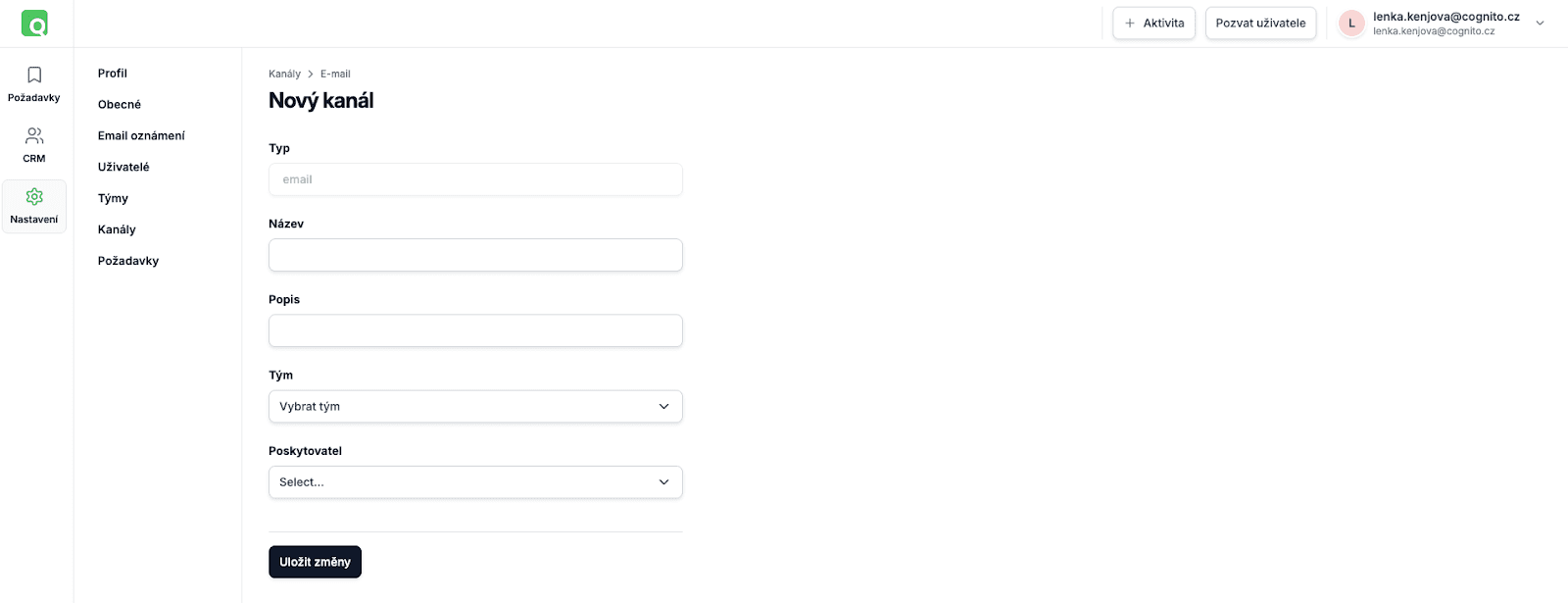
After registration, create a channel, for example info@vasefirma.cz. You can connect an email account from Microsoft365 or Gmail, Google Workspace, or an IMAP/SMTP account. Confirm that Qconic can download and send emails. Finally, assign a team and all messages will instantly turn into tickets.
You can add more channels anytime later. One team can have multiple connected email addresses (channels).
To let you try it out, we’ll create a generated email address with us. You can send your test emails there.
Invite your colleagues
If you haven’t added your colleagues yet, now is the perfect time. In the Users tab, you can invite them to Qconic in one step, assign them a role (Agent, Admin) and the team they’ll work in.

And that’s it. In a few minutes, you have a working helpdesk.
Tips for smooth operations
In Qconic, every ticket goes through statuses – from New, through In progress and Waiting for customer, all the way to Closed. If nothing happens for a long time, the system automatically reminds you that a reply is needed. That way, no request slips through the cracks and every customer gets a response.
When you assign an owner to a request, you immediately know who is handling it. The ticket goes to the person who can resolve it fastest and best. And you know it’s being taken care of. Later, you can assign the request to someone else.
It also pays to track SLA – in other words, the time by which the request should be answered. Customers don’t like waiting long. It helps set realistic expectations and keep the promises you’ve made to the customer.
And instead of writing emails between colleagues, add an internal comment directly in the ticket. Your team can coordinate right where it makes the most sense – without unnecessary forwarding or searching for information.
Customer communication with Qconic is easy
You don’t need an IT team, to hire an agency, or to change your entire system. Just a simple tool that helps you keep shared company emails in order. Try Qconic free for 14 days.