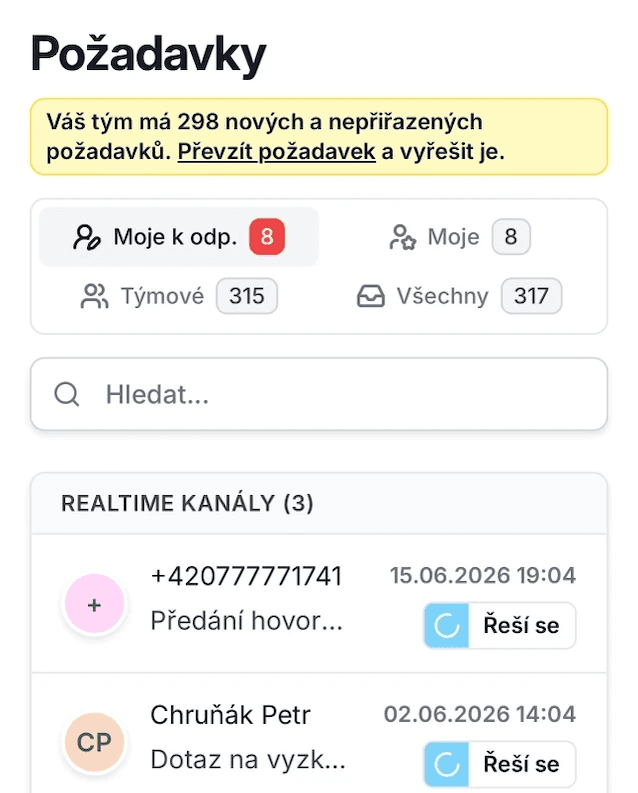
When using Qconic helpdesk, it's really handy to stay in the loop whenever a customer sends a new inquiry, whether it's via email, webchat, or Facebook Messenger.
While working on your computer in the Qconic app, you'll see a notification about new requests instantly. But if you happen to step away from your desk, our mobile app and its push notifications have got you covered!
The Qconic mobile app is not your traditional app from the App Store or Google Play. Instead, it's a web app that you can easily add to your home screen as an icon. Once added, it works just like a native app – opening in its own window without the browser address bar, supporting notifications, and featuring its own icon. This technology is known as a PWA (Progressive Web App).
How to install the app on your mobile phone?
Android (Chrome):
Open Chrome or your preferred browser, go to app.qconic.com, and log in to your account.
Tap the three dots in the top right corner.
Select "Add to Home screen" / "Install app".
Confirm the name and tap "Add" / "Install".
The icon will now appear on your home screen and in your app drawer.
iPhone (Safari):
Open Safari (please make sure to use Safari, not Chrome), go to app.qconic.com, and log in to your account.
Tap the Share icon (the square with an arrow pointing up) in the bottom navigation bar.
Scroll down the menu and choose "Add to Home Screen".
Name the app (for example, "Qconic") and confirm by tapping "Add".
The Qconic icon will appear on your home screen – just tap it to open the app in beautiful full-screen mode.
With the mobile app, you can easily reply to inquiries on the go or even call your CRM contacts with a single tap.
Installing on a computer - Windows and Mac
You can also install the app on your computer so you never miss a notification, even when working in another application or browsing other tabs. You'll receive system notifications, and the app will have its very own desktop icon.
Desktop – Windows / Mac (Chrome, Edge):
Open Chrome or Edge, go to app.qconic.com, and log in to your account.
Click the installation icon in the right side of the address bar (the monitor symbol with a ⊕ arrow).
If you don't see the icon: click the three dots (menu) → "Install app" / "Apps" → "Install this site as an app".
Confirm by clicking "Install".
The app will open in its own window and appear on your desktop, Start menu (Windows), or Launchpad (Mac). It features its own icon and launches just like a standard app.
Technically, it runs as a standalone web application.
With notifications set up on your phone or computer, you can jump right into user inquiries and never miss a beat!